
iOS 18 hacks: How to customise lock screen on iPhone
iOS 18 enables iPhone users to customise the lock screen of iPhones by choosing a wallpaper, changing the font of the time, and adding widgets among others.
- Tech News
- 2 min read

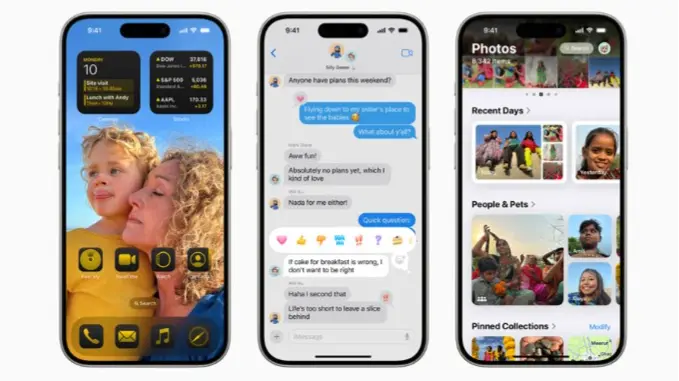
iOS 18 hacks: Apple rolled out iOS 18 update to all supported iPhone models, including the iPhone 11 series and the iPhone XR, earlier this month. This update brought a host of new features to the iPhone including the ability to customise lock screen on their devices. With iOS 18, iPhone users can not only change the lock screen wallpaper, but they can also make changes to the clock style, colour and style of the clock and the widgets. In addition to this, users can also change the widgets that appear at the bottom of the screen – a functionality that was unavailable in iOS 17.
So, here is a step-by-step guide that iPhone users can use to customise lock screen on iPhone models running iOS 18:
iOS 18 update: How to customise lock screen on iPhone
Step 1: Download iOS 18 on your iPhone.
Step 2: Press the side button on your iPhone twice to go to the Lock Screen.
Advertisement
Step 3: Touch and hold the Lock Screen until the Customise and Add buttons appear at the bottom of the screen.
Step 4: Tap the Add button to create a new Lock Screen.
Advertisement
Step 5: Swipe to the screen you want to change.
Step 6: Tap the Customise button and then tap the Lock Screen icon.
Step 7: Tap one of the wallpaper options to select it for the new lock screen.
Step 8: Now tap the time option to change the font, colour and style of the clock.
Step 9: To add widgets, tap the Add Widgets option and add the widgets that you prefer.
Step 10: Tap Done.
iOS 18 update: How to delete a lock screen
Step 1: Press the side button on your iPhone twice to go to the Lock Screen.
Step 2: Touch and hold the Lock Screen until the Customize button appears at the bottom of the screen.
Step 3: Swipe to go to the Lock Screen you want to delete.
Step 4: Swipe up on the screen and the tap the Trash button.
Step 5: Tap Delete This Wallpaper option.