
How to use the Apple Maps Look Around feature to see street views in selected cities?
The Apple Maps Look Around feature helps iPhone users to explore a location before actually going there. The service is available in selected cities yet.
- Tech News
- 2 min read

;'%3e%3cpath%20d='m8,15.99c4.41,0,7.99-3.58,7.99-7.99S12.41,0,8,0,0,3.59,0,8s3.58,7.99,7.99,7.99Z'%20style='stroke:%23fff;%20stroke-miterlimit:10;%20stroke-width:.02px;'/%3e%3cpath%20d='m3.08,3.37l3.82,5.11-3.84,4.15h.87l3.37-3.64,2.72,3.64h2.94l-4.04-5.39,3.58-3.87h-.86l-3.1,3.35-2.5-3.35h-2.94Zm1.27.64h1.35l5.97,7.99h-1.35l-5.97-7.99Z'%20style='fill:%23fff;'/%3e%3c/g%3e%3c/svg%3e)


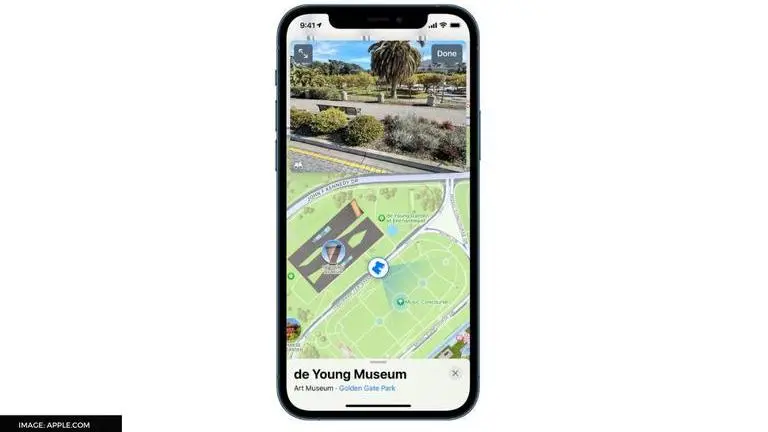
Along with iOS 15, Apple has launched a bunch of new features for iPhone users, including the ability to hide personal emails, Tab Groups, the ability to select sound profiles, and an advanced Apple Maps functionality as well. There is another feature that is quite useful: the street view for Apple's navigation service, which is also called Apple Look Around feature. It is very similar to Google Map's street view and lets a user explore the area nearby. Keep reading to know about how to use Apple Maps Look Around feature.
Although the feature is available for selected cities around the world, the list is being updated constantly as iPhones users are present across the globe. The feature will help users get an idea about what a location looks like without leaving their place. In the daily course, the Apple Look Around feature will allow users to view specific parts or locations or a city in all directions from the point of view. The feature is supported on Apple devices running iOS 13 or later. The Apple Look Around feature can be used in two ways - by address and by location.
How to use Apple Maps Look Around feature?
By Address
- Open Apple Maps on iPad or iPhone
- Enter the address
- If the device is running on iOS 15, a binocular icon will appear on the bottom right corner of the map
- If the device is running on iOS 13 or iOS 14, the binocular icon will appear on the right side of the screen
- Tap on the binocular icon
- The Apple Maps Look Around will open
- A user can navigate using screen swipe gestures and the arrow icons given on the top-left corner of the screen
- A user can view the location in either full-screen or hall-screen mode
- To move to another location in the street, a user can tap on rings that appear on the screen
- Once done with scouting, a user can click on Done in the top right corner of the map
By location
- Find the location that is to be viewed on the Apple Maps application
- Tap on the Boniculars icon at the top right corner of the screen or bottom left corner of the screen
- Once the Apple Look Around feature is active, tap on the grey bar at the bottom of the screen to see details about the location