
Notification History on Android: What It Is, Why It Matters, and How to Enable It
Find out what is Android’s Notification History feature and how to enable it. A must-know hidden tool for every Android user.
- Tech News
- 2 min read

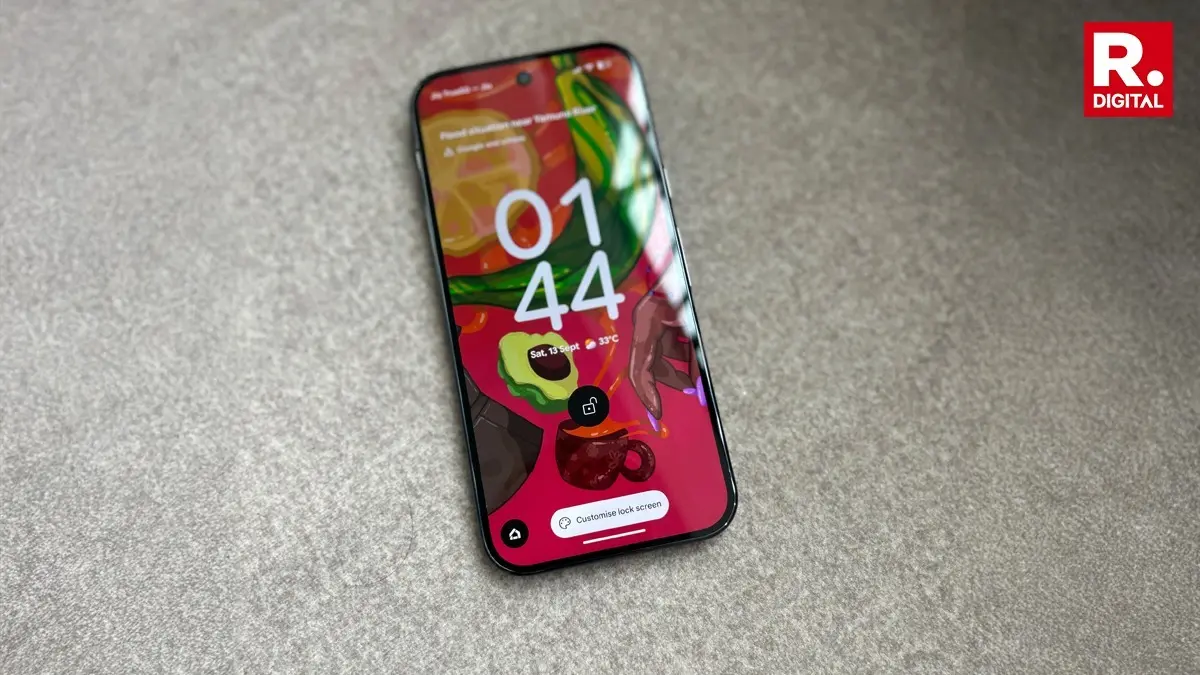
If you’ve ever swiped away a notification too quickly and instantly regretted it, you’re not alone. With dozens of apps buzzing for our attention every day, it’s easy to miss something important - a message from a friend, a payment alert, or even a work email. That’s exactly why Notification History exists on Android. It’s one of the most underrated features Google added years ago, yet surprisingly, it’s still not enabled by default on most phones.
What is Notification History?
Notification History is like a safety net for your alerts. Once you turn it on, every dismissed notification gets stored in a dedicated section. Think of it as a “second chance” inbox. Accidentally swipe away a WhatsApp message? Clear a Gmail alert too fast? No problem, you can scroll back and see what you missed.
It’s essential to note that Notification History only displays past notifications, not the ones currently sitting in your shade. So, it’s not a replacement for your notification panel, but rather a backup for the ones you’ve already dismissed.
Why Should You Use It?
Just for the sake of peace of mind. We live in a world where apps compete for our attention, and sometimes we clear things just to declutter. But what if that “ping” was something urgent? Without Notification History, it’s gone forever. With it, you get 24 hours to revisit what you missed. That window can make all the difference whether it’s catching a reminder, a delivery update, or a message you didn’t mean to ignore.
Advertisement
For students, professionals, or anyone juggling multiple apps, this feature is a lifesaver. It reduces stress, keeps you informed, and ensures you don’t miss out on something important because of a quick swipe.
How to Enable Notification History
The process is nearly identical across Android skins, whether you’re on Google’s Pixel (stock Android), Samsung’s One UI, or OnePlus’ OxygenOS. Here’s the simple way:
Advertisement
1. Open Settings on your phone.
2. Navigate to Notifications.
3. Look for Notification History.
4. Toggle it On.
Once enabled, you’ll see a dedicated page where dismissed notifications appear. Remember, they stay there for 24 hours before being permanently deleted. Notification History is one of those small but mighty features that can save you from frustration. It’s not flashy, but it’s practical.