
Valorant error 1: What causes the error code and how to fix it?
Valorant error 1 is one of the error codes that have been faced by players after the recent 1.01 Valorant patch went live. Find out how you can fix the error.
- Tech News
- 3 min read

;'%3e%3cpath%20d='m8,15.99c4.41,0,7.99-3.58,7.99-7.99S12.41,0,8,0,0,3.59,0,8s3.58,7.99,7.99,7.99Z'%20style='stroke:%23fff;%20stroke-miterlimit:10;%20stroke-width:.02px;'/%3e%3cpath%20d='m3.08,3.37l3.82,5.11-3.84,4.15h.87l3.37-3.64,2.72,3.64h2.94l-4.04-5.39,3.58-3.87h-.86l-3.1,3.35-2.5-3.35h-2.94Zm1.27.64h1.35l5.97,7.99h-1.35l-5.97-7.99Z'%20style='fill:%23fff;'/%3e%3c/g%3e%3c/svg%3e)


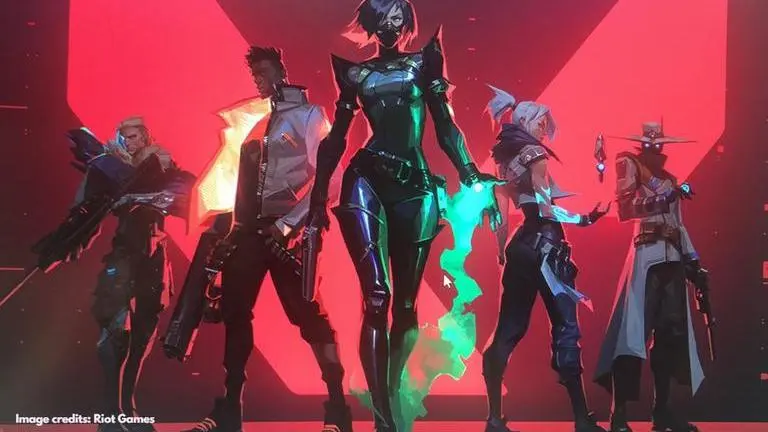
Valorant is one of the most popular first-person shooter games that is played by millions around the globe. It is the first game that Riot has developed in the genre, offering a host of exciting content to the fans. However, the game is also plagued with plenty of bugs and errors which is actually common for a huge and graphic-intensive video game.
There are a bunch of different error codes that have been encountered by users, where every code indicates a different issue. Valorant error 1 is one of the most common errors that has been reported by players. So, let us take a look at what the error code means and how you can resolve it.
What causes Valorant error 1?
Several Valorant players have complained of this error code, however, the main problem causing the error hasn’t been well defined. One of the most suggested steps to resolve this issue is to make sure that all the unnecessary programs are closed, however, that may not always fix the problem. So, here are some alternative solutions to try out.
Advertisement
Valorant error code 1 fixes
Solution 1: Run the game as an administrator
A quick and easy way to fix the Valorant error 1 is to run the game (.exe) file as an administrator. It will essentially give you User Access Control (UAC) permission to Valorant, allowing you to load and run the game properly on Windows. All you need to do is locate the Valorant (.exe) file, right-click on it and select ‘Properties’. Next, you need to go to the Compatibility tab and check ‘Run as administrator’. Click on ‘Apply’ and hit ‘OK’ to save the changes. This should fix the error for most users.
Advertisement
Solution 2: Update the graphics card drivers
If the Valorant error code 1 persists, you should try updating your graphics card drivers. However, if you encounter an issue, Riot recommends reinstalling the game. This includes uninstalling the Riot Valorant. To uninstall it, you need to head over to the Control Panel and click on 'Program and features'. Right-click on 'Riot Vanguard' and tap 'Uninstall' to remove it. Restart the system and relaunch the game client which will automatically reinstall the Riot Vanguard. Now, restart the system and launch the game.
Solution 3: Contact Support
If you have tried the above solutions and are still facing the problem, you will need to contact Valorant support as the issue is from Riot's end.
Image credits: Riot Games